

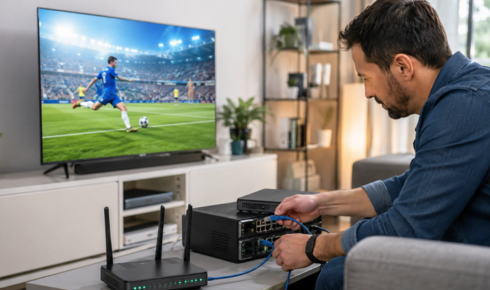

IPTV can use a significant amount of internet data, especially when programmes are streamed in Full HD or 4K for everal hours each day. This may not be a concern on an unlimited fibre connection, but it can become important for households with data limits, mobile hotspots, slower connections, or several active screens.
Reducing data usage does not necessarily mean accepting a poor viewing experience. By selecting the right resolution, managing connected devices, adjusting application settings, and monitoring consumption, users can maintain stable playback while avoiding unnecessary bandwidth use.
This guide explains how IPTV data consumption works and how to reduce it on Smart TVs, Android TV devices, Fire TV Stick, smartphones, tablets, and computers.
Quick Answer: How Can You Reduce IPTV Data Usage?
To reduce IPTV data consumption:
- choose HD instead of 4K when high resolution is unnecessary;
- use lower quality on smartphones and tablets;
- disable automatic 4K playback;
- stop unused streams completely;
- avoid running the same channel on several devices;
- limit background downloads and application updates;
- reduce the number of simultaneous connections;
- monitor monthly data usage through the router;
- use Ethernet or stable Wi-Fi to prevent repeated loading;
- download application updates only when connected to unlimited Wi-Fi.
The amount of data used by an IPTV Premium setup depends mainly on stream resolution, video bitrate, viewing time, and the number of active devices.
How Much Data Does IPTV Use?
Data usage varies according to the way the video is encoded.
Two streams with the same resolution may consume different amounts of data because they use different bitrates or compression technologies.
The following estimates provide a general idea:
Video qualityApproximate hourly data useStandard definition0.7 to 1.5 GBHD 720p1.5 to 3 GBFull HD 1080p3 to 7 GB4K Ultra HD7 to 16 GB or more
These figures are estimates rather than fixed limits.
A high-frame-rate sports stream may consume more data than a film using the same resolution. A modern codec may also deliver similar picture quality at a lower bitrate than an older format.
Understand Resolution and Bitrate
Resolution describes the number of pixels in the picture. Bitrate describes how much data is transmitted during a specific period.
A high-resolution stream does not always use an extremely high bitrate. Likewise, a poorly compressed HD stream may use more data than expected.
The most common resolutions are:
- SD at 480p or 576p;
- HD at 720p;
- Full HD at 1080p;
- Ultra HD at 2160p or 4K.
Bitrate has a direct effect on:
- image detail;
- motion clarity;
- compression artifacts;
- buffering risk;
- data usage.
The ideal setting provides enough quality for the screen without using more data than the viewer can realistically notice.
Match the Quality to the Screen Size
A large living-room television benefits more from Full HD or 4K than a smartphone or small tablet.
Using 4K on a small screen may consume considerably more data without producing a meaningful visual improvement.
A practical setup might use:
- Full HD or 4K on the main television;
- HD or Full HD on a bedroom television;
- HD on a tablet;
- SD or HD on a smartphone using mobile data.
Viewing distance also matters. The farther a person sits from the screen, the less noticeable small resolution differences may become.
Use Full HD Instead of 4K
Switching from 4K to Full HD can significantly reduce data consumption.
Full HD remains suitable for:
- general television;
- news;
- many films and series;
- medium-sized televisions;
- rooms with a longer viewing distance;
- connections shared by several people.
4K is most useful when:
- the original content is available in native 4K;
- the television supports 4K;
- the streaming device is powerful enough;
- the internet connection is stable;
- data consumption is not restricted.
Stable Full HD often provides a better experience than 4K playback that repeatedly buffers or lowers its quality automatically.
Reduce Quality on Mobile Devices
Mobile data plans may include monthly limits or reduced speeds after a certain amount of usage.
When watching IPTV on a smartphone:
- choose SD or HD;
- avoid 4K streams;
- use Wi-Fi whenever possible;
- disable automatic playback;
- close the player when viewing ends;
- monitor data usage in the phone settings.
A one-hour Full HD stream can consume several gigabytes. Regular mobile viewing can therefore use a monthly allowance quickly.
On a smaller display, HD may already provide a clear and comfortable image.
Disable Automatic Highest-Quality Playback
Some IPTV players automatically choose the highest available stream.
Look for settings such as:
- preferred quality;
- default resolution;
- adaptive quality;
- maximum playback quality;
- mobile data quality;
- Wi-Fi playback quality.
Select a reasonable default for each connection type.
For example:
- Full HD on home Ethernet;
- HD on home Wi-Fi;
- SD or HD on mobile data.
Not every application offers automatic quality selection. When several versions of the same channel are available, choose the appropriate entry manually.
Choose the Right Channel Version
Playlists may contain several versions of one channel:
- SD;
- HD;
- Full HD;
- 4K;
- 50 fps;
- 60 fps;
- backup streams.
The highest-quality entry usually consumes the most data.
For casual viewing, news, talk shows, or programmes playing in the background, an HD stream may be sufficient.
Higher frame rates are useful for fast sports action, but they can also increase bandwidth use. Reserve them for content where smoother motion provides a real benefit.
Stop Streams When They Are Not Being Watched
Putting a television on the home screen does not always stop the application immediately.
Some players may continue running in the background or keep the connection active temporarily.
When viewing has finished:
- stop playback;
- close the IPTV application;
- return to the device home screen;
- remove the application from recent apps when appropriate;
- turn off or place the device into proper standby mode.
This is particularly important on mobile hotspots and limited home internet plans.
Avoid Streaming the Same Content on Several Screens
Two devices playing the same channel still create two separate streams.
Each active stream consumes its own bandwidth and data allowance.
When several people want to watch the same programme, using one larger television may be more efficient than playing the stream separately on multiple devices.
Before activating several screens, confirm the simultaneous connection limit associated with the subscription.
Exceeding that limit may create:
- interrupted playback;
- login errors;
- connection warnings;
- automatic disconnections.
Monitor Data Through the Router
Many modern routers display data usage by device.
The router interface may show:
- total monthly traffic;
- daily usage;
- devices using the most bandwidth;
- current upload and download activity;
- connection duration;
- real-time network speed.
Use this information to identify whether the main television, streaming box, computer, or another device is consuming the most data.
The exact monitoring options depend on the router model and internet provider.
Third-party router applications may provide additional statistics, but they should come from trusted developers.
Check Mobile Data Usage
Android and iOS devices include built-in data monitoring.
Users can normally review:
- data used by each application;
- usage during the current billing period;
- background data consumption;
- mobile hotspot usage;
- warning and limit settings.
Set a data warning before the monthly allowance is reached.
Disabling background mobile data for the IPTV application may prevent unnecessary network activity when the player is not open.
Control Fire TV Stick Data Usage
A Fire TV Stick may use data for more than IPTV playback.
Additional consumption can come from:
- application updates;
- system updates;
- preview videos;
- screensaver images;
- other streaming applications;
- background services.
To reduce usage:
- disable automatic video previews where possible;
- close unused applications;
- limit automatic updates;
- use lower-resolution streams;
- restart the device periodically;
- uninstall applications that are no longer needed.
Do not disable essential security updates permanently. Instead, schedule them when connected to an unlimited network.
Manage Android TV and Google TV Usage
Android TV and Google TV devices may update applications automatically.
To control data consumption:
- review Google Play Store update settings;
- avoid large updates through a mobile hotspot;
- disable automatic previews;
- close background applications;
- reduce default stream quality;
- check system network statistics when available.
Some devices provide a data-saver mode designed for limited connections.
When enabled, this feature may reduce video quality or warn users before large amounts of data are consumed.
Limit Background Downloads
IPTV playback shares the connection with all other internet activity.
Background consumption may come from:
- cloud backups;
- game downloads;
- operating-system updates;
- photo synchronization;
- security cameras;
- file transfers;
- software installations.
These activities do not always increase IPTV data usage directly, but they may create instability.
When the connection becomes congested, the application may reload, reconnect, or change streams repeatedly.
Pause large downloads during viewing and schedule updates outside peak hours.
Improve Connection Stability
A stable connection helps the application receive video data efficiently.
Weak Wi-Fi can cause:
- repeated buffering;
- reconnections;
- resolution changes;
- stream restarts;
- increased loading time.
To improve stability:
- use Ethernet for fixed televisions;
- move the router closer;
- choose the appropriate Wi-Fi band;
- avoid placing the router inside furniture;
- reduce interference;
- use a mesh system in larger homes.
Ethernet does not reduce the bitrate of a stream, but it can prevent interruptions caused by unstable wireless reception.
Use 5 GHz and 2.4 GHz Appropriately
The 5 GHz Wi-Fi band normally provides higher speeds at shorter distances.
It is suitable for:
- a television near the router;
- Full HD or 4K playback;
- rooms with limited interference.
The 2.4 GHz band provides greater range but may be more congested.
It can be suitable for:
- distant rooms;
- devices behind several walls;
- lower-resolution streaming;
- basic mobile viewing.
Use the band that provides the most consistent connection, not simply the highest speed-test result.
Avoid Excessive Buffer Settings
Some IPTV applications allow users to increase the playback buffer.
A larger buffer can help maintain playback during small connection variations. However, it may also:
- delay channel startup;
- increase live-stream latency;
- store more temporary data;
- make channel changes slower.
Use a moderate buffer unless the connection is highly unstable.
Increasing the buffer does not reduce the stream bitrate or total data consumption significantly. It mainly changes when the data is downloaded and played.
Clear Cache Carefully
Application cache contains temporary information such as images, programme-guide files, and playback data.
Clearing an oversized or corrupted cache may improve performance, but repeatedly clearing it is not always necessary.
After the cache is deleted, the application may need to download:
- channel logos;
- programme-guide data;
- thumbnails;
- categories;
- interface images.
This can temporarily increase data usage.
Clear the cache when the application is unstable or when stored files appear corrupted, rather than as a daily routine.
Limit EPG Download Size
Electronic Programme Guide data is much smaller than video, but very large guide files can still consume storage and data.
An EPG may contain schedules for:
- hundreds of channels;
- several countries;
- seven to fourteen days;
- programme descriptions;
- images and metadata.
Where the application allows it:
- load only relevant countries;
- remove unused guide sources;
- reduce the guide period;
- avoid duplicate EPG feeds;
- refresh once or twice per day instead of repeatedly.
This is particularly useful on streaming devices with limited storage.
Remove Unused Channel Groups
Large playlists may contain categories that are never watched.
Hiding or removing unused groups can:
- improve navigation;
- reduce playlist processing;
- shorten application startup;
- simplify EPG matching;
- reduce unnecessary logo and metadata downloads.
Possible groups to remove include:
- unused countries;
- duplicate channel qualities;
- backup streams;
- unwanted categories;
- unsupported 4K versions.
Save a copy of the original playlist before making permanent changes.
Download Updates on Unlimited Wi-Fi
Application and device updates can be large.
Avoid downloading them through:
- a limited mobile hotspot;
- roaming data;
- capped satellite internet;
- a restricted home plan.
Connect the device to an unlimited network before updating.
Security updates should still be installed regularly. The goal is to control when the data is used, not to avoid important updates entirely.
Be Careful When Using a Mobile Hotspot
A mobile hotspot can be useful when home internet is unavailable, but IPTV can consume the allowance quickly.
Before using one:
- check the mobile plan;
- confirm the monthly limit;
- select SD or HD;
- stop other connected devices;
- disable cloud backups;
- avoid 4K;
- monitor the phone’s temperature and battery;
- keep the phone connected to power safely.
Some mobile providers reduce speed after a usage threshold. Playback may begin smoothly and become unstable later.
Understand Roaming Charges
Streaming while travelling can create unexpected charges.
International roaming plans may apply:
- daily fees;
- limited high-speed data;
- expensive per-megabyte rates;
- reduced speeds after a threshold.
Before using IPTV abroad:
- review the mobile plan;
- connect to trusted Wi-Fi;
- disable roaming when not required;
- use lower quality;
- confirm that the service permits access from the location;
- follow local laws and content restrictions.
Never assume that streaming data is included simply because general roaming is active.
Use Data-Saving Settings on Computers
Computers may use bandwidth for many background tasks.
Before watching IPTV on a laptop:
- pause cloud synchronization;
- stop large browser downloads;
- close unused streaming tabs;
- disable automatic software updates temporarily;
- choose HD rather than 4K;
- check the operating system’s data-usage page.
Windows allows users to mark certain connections as metered. This can reduce automatic background downloads.
The exact behaviour depends on the application and operating-system version.
Create Different Profiles for Different Connections
A practical household configuration can assign quality levels by device.
DeviceConnectionSuggested qualityMain Smart TVEthernetFull HD or 4KBedroom televisionWi-FiHD or Full HDTabletHome Wi-FiHDSmartphoneMobile dataSD or HDLaptopMobile hotspotHDSecondary screenLimited networkSD or HD
Users configuring a Smart IPTV abonnement can review installation guidance for different televisions and streaming devices before choosing the most suitable quality for each screen.
Estimate Monthly IPTV Data Use
Monthly consumption can be estimated with a simple calculation:
Hourly data use × hours watched per day × number of days
For example, a stream using approximately 3 GB per hour and watched for two hours per day may consume:
3 GB × 2 hours × 30 days = 180 GB per month
Two simultaneous screens could double that amount.
Actual usage may differ according to stream bitrate, resolution, frame rate, and viewing habits.
Data-Usage Troubleshooting TableProblemPossible causeRecommended actionMonthly allowance disappears quicklyHigh-resolution viewingUse HD instead of 4KMobile data usage is excessiveFull HD mobile playbackSelect SD or HDData is used while not watchingApplication remains activeStop playback and close the appSeveral devices consume large amountsSimultaneous streamsReduce active screensHotspot becomes slowMobile threshold reachedCheck the plan and lower qualityRouter reports unexpected trafficBackground updatesReview connected devicesApplication repeatedly reloadsUnstable Wi-FiImprove the network connectionEPG downloads are largeToo many guide sourcesKeep only required regionsStreaming box uses data overnightAutomatic updates or previewsReview device settingsRoaming bill increasesInternational mobile streamingUse trusted Wi-Fi and check chargesFrequently Asked QuestionsDoes IPTV use more data than ordinary streaming?
Data consumption depends on resolution and bitrate. An IPTV stream and another streaming service can use similar amounts when their quality settings are comparable.
How much data does one hour of IPTV use?
It may range from less than 1 GB for lower-quality video to more than 10 GB for some 4K streams.
Does Ethernet use less data than Wi-Fi?
Ethernet does not automatically reduce the stream bitrate. It may provide more stable delivery and prevent interruptions caused by poor Wi-Fi.
Can IPTV be watched using mobile data?
Yes, when permitted by the service and mobile provider. Select a lower resolution and monitor the monthly allowance carefully.
Does closing the television stop data usage?
Not always. The application or streaming device may remain active. Stop playback and close the application completely.
Is HD good enough for a Smart TV?
HD may be suitable for smaller televisions or longer viewing distances. Full HD usually provides a sharper image on larger screens.
Does 4K use much more data than Full HD?
Yes. A 4K stream can use several times more data, depending on bitrate and compression.
Can EPG files use a lot of data?
EPG files use far less data than video, but large multi-country guides can still consume storage and bandwidth unnecessarily.
Does a VPN reduce IPTV data use?
No. A VPN may add a small amount of overhead and does not reduce the original video bitrate.
How can I see which device uses the most data?
Check the router dashboard, internet-provider application, or device network settings when usage monitoring is supported.
IPTV Data-Saving Checklist
To control IPTV data usage:
- choose a suitable resolution for each screen;
- avoid unnecessary 4K playback;
- use HD on mobile devices;
- stop unused streams;
- close applications completely;
- monitor consumption through the router;
- disable unnecessary automatic previews;
- schedule updates on unlimited Wi-Fi;
- pause cloud backups and large downloads;
- limit simultaneous viewing;
- remove unused EPG sources;
- avoid streaming through expensive roaming data;
- review hotspot and mobile-plan limits.
Conclusion
Reducing IPTV data consumption is mainly a matter of selecting an appropriate resolution and controlling how many streams are active.
Use Full HD or 4K where the screen and connection justify it, but choose HD or SD for smaller displays, mobile data, and secondary televisions. Close applications when viewing ends, monitor usage through the router, and prevent unnecessary updates or background downloads on limited connections.
A stable network also helps prevent repeated loading and stream restarts.
By matching video quality to each device and connection, users can maintain comfortable playback without consuming more data than necessary.
Always use IPTV applications and services in accordance with their terms, applicable content rights, and local laws.